Docs - Making videos
Turn your own study material into a training course
In short
On a paid plan, a Training course can be built from your own study material: up to 10 PDF files or photos of pages. You choose the chapters or page ranges to use, and Q plans the lessons to follow them in order.
Updated
Longer videos (up to 30 hours) and study-material uploads (PDF books and photos of pages) are on the paid plans. Study material is available on Scholar, Lab and Institute, and only for the Training course format.
Add your files on the Material step
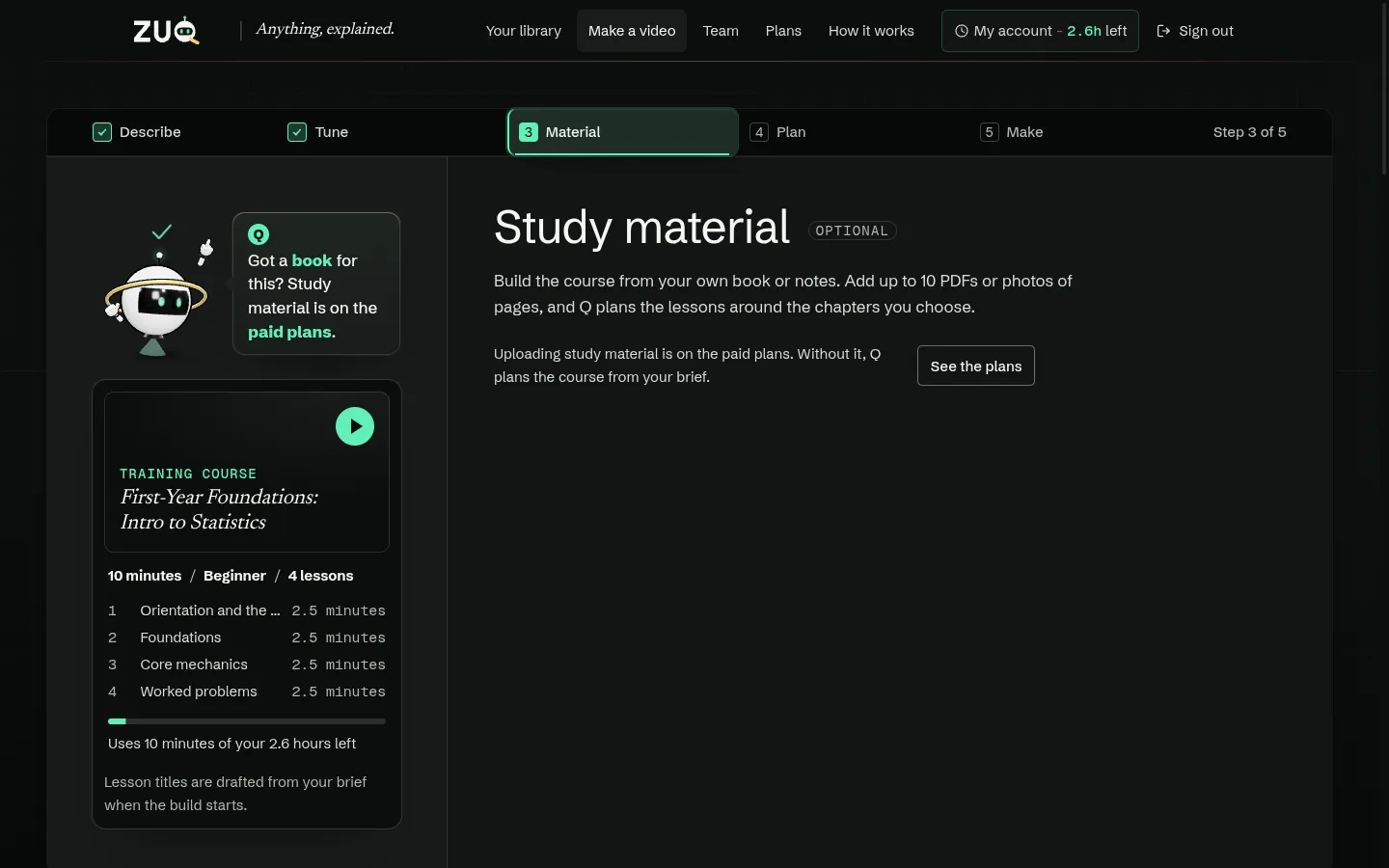
The Material step sits between Tune and Plan when the format is Training course. It is optional: skip it and Q plans the course from your brief alone.
- Start a Training course and continue past the Tune step.
- On the Material step, choose files, or drop them on the area marked "Choose files, or drop them here".
- Watch each file's progress bar. Use Pause, Resume or Cancel on a row while it uploads, and Retry if an upload fails.
- For each PDF, choose chapters or page ranges if it needs them (see below).
- Check the Pages selected meter, then continue to the Plan step.
What you can upload
- Up to 10 files per course, 2 GB in total.
- PDF files up to 500 MB each, such as a textbook or lecture notes.
- Photos of pages as JPG or PNG, up to 25 MB each and at most 60 per course. Each photo is resized in your browser to 2048 pixels on its long side before it uploads, and counts as one page.
- Scanned pages without a text layer are read with OCR.
- A PDF that needs a password to open cannot be used. Save a copy without the password and add that instead. A copy-restricted PDF that opens without a password is fine.
Choose chapters or page ranges
A PDF of 300 pages or fewer is used whole unless you choose otherwise. A longer PDF must have chapters ticked or page ranges typed. A whole course takes at most 600 selected pages, shown on the Pages selected meter.
- Open the Chapters list on a PDF row. The chapter list is read from the PDF's own outline, in your browser.
- Tick the chapters the course should cover.
- Or type page ranges, for example 1-40, 112-130.
- Keep the Pages selected meter at or under 600. Untick a chapter or narrow a range if it is over.
How the course uses your material
On the Plan step, Q drafts the lesson plan from the chapters and page counts you chose, in their order. When the course is built, each lesson is taught from the part of your material that matches it.
Privacy and rights
Upload only material you own or are licensed to use. Your files stay private: they are used only to build that course, and they are deleted 30 days after upload.
Questions
Can I upload study material on the Free plan?
No. Longer videos (up to 30 hours) and study-material uploads (PDF books and photos of pages) are on the paid plans. On Free the Material step shows a lock and a link to the plans, and Q plans the course from your brief.
Can I upload a whole textbook?
Yes, up to 500 MB per PDF. A book over 300 pages needs chapters or page ranges chosen, and one course takes at most 600 selected pages. For a longer book, make one course per part.
Can I use study material in an Explainer or a Document video?
No. Study material is for Training courses only. A Document video takes one PDF, text or Markdown file on the Describe step instead.
Who can see the files I upload?
Nobody else. The files are private, used only to build that course, and deleted 30 days after upload.
Why was my PDF refused?
It needs a password to open, it is damaged, or it is not a PDF. Save an unprotected copy, or export it again as PDF, and add it again.