Docs - Making videos
Make a training course and approve its lesson plan
In short
A Training course teaches a subject lesson by lesson, in order, from 5 minutes to 30 hours. Before anything is built, Q drafts a lesson plan and you review it on the Plan step: edit any lesson, reorder them, add or remove lessons, or ask Q to revise the plan in plain words. The course is built only from the plan you approve.
Updated
Start a training course
A course runs through five steps: Describe, Tune, Material, Plan and Make. The other formats skip Material and Plan.
- On the Describe step, name the subject, or paste a syllabus or your lecture notes.
- Set the Format dial in Q's read to Training course if Q has not already chosen it.
- Choose "I'm learning it" or "I'm teaching it".
- Pick a length and a depth, then press Continue.
- Answer or accept the Tune questions.
- On the Material step, optionally add study material (paid plans), or skip it.
Review the plan Q drafts
On the Plan step Q drafts a course title, a goal and an ordered list of lessons. Each lesson has a title and up to 3 objectives. If you uploaded study material, the plan follows its chapters.
If the drafting service is unavailable, a plan is drafted on your device instead and the step says so. You can edit it the same way.
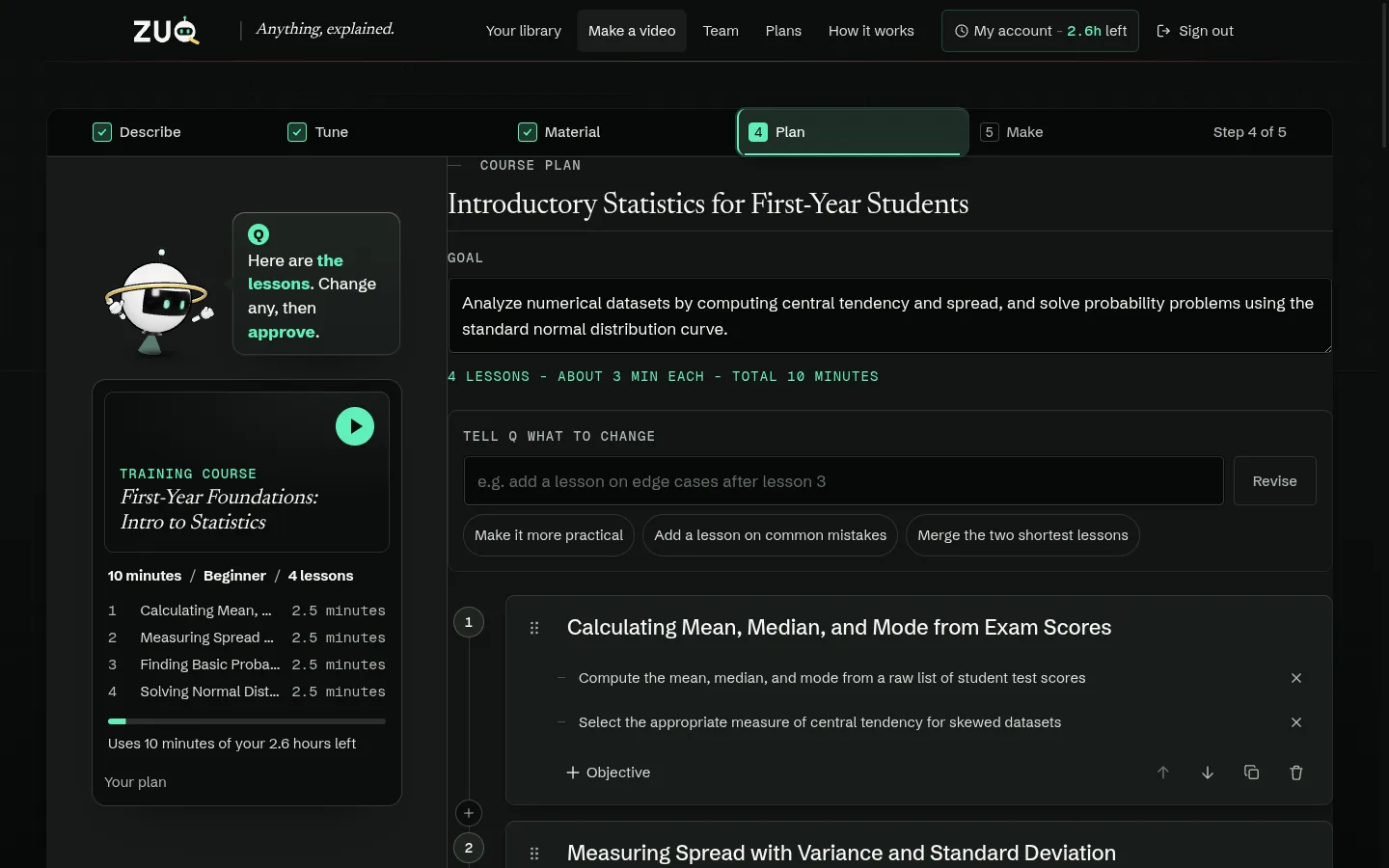
Edit, reorder, add or remove lessons
- Click a lesson title or objective and type to change it.
- Drag a lesson by its handle to move it, or use Move up and Move down. With the keyboard, focus the handle and use the arrow keys.
- Use the plus button between two lessons to insert a new one, or Duplicate to copy one.
- Use Delete to remove a lesson you do not need.
- Press Undo to take back the last change, or Start over for a fresh draft.
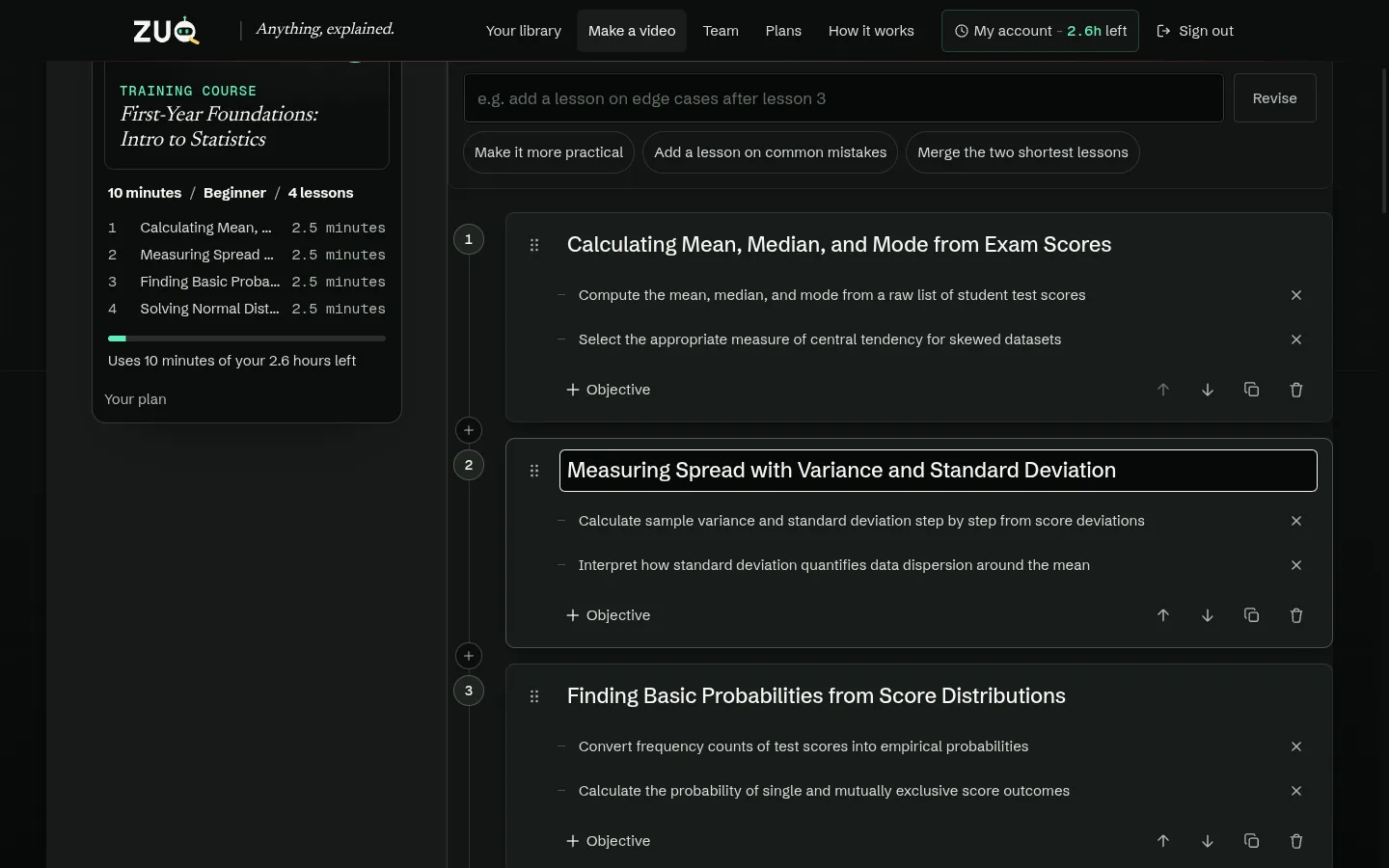
Ask Q to revise the plan
Type what should change into "Tell Q what to change", for example "Make it more practical", "Add a lesson on common mistakes" or "Merge the two shortest lessons". Q rewrites the plan and you review it again. Asking Q needs you to be signed in; you can always edit the plan yourself.
Approve the plan and build the course
The build makes the lessons you approved, in that order. Each lesson is built as one or more videos of up to 3 minutes; a longer lesson is cut into parts.
- Give every lesson a title. The plan cannot be approved with an untitled lesson.
- Press Approve this plan.
- On the Make step, check the title, length, depth and the minutes the course uses, then press Make the course.
Watch the finished course
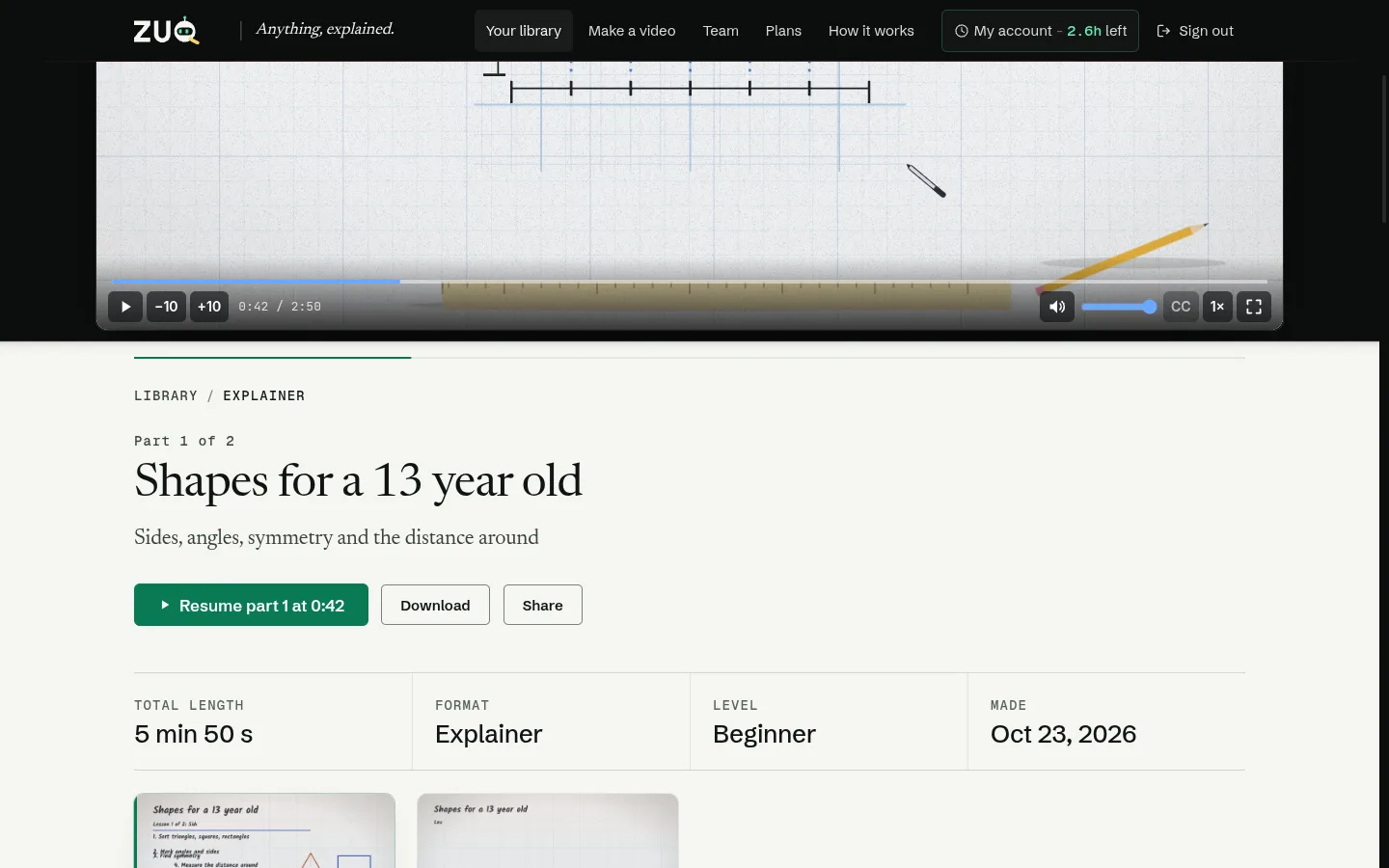
A finished course opens on its video page. The Lessons rail lists every lesson with its poster, number, title and length, and marks the ones you have watched. Previous lesson and Next lesson move through the course, and Autoplay next lesson plays the next one when a lesson ends.
Questions
Do I have to write the course outline myself?
No. Q drafts the whole plan from your brief. You only change what you want to, then approve it.
How many lessons can a course have?
At least 2, and at most one per minute of runtime, up to 60. Each lesson is built as videos of up to 3 minutes.
Can I change the lesson plan after the course is built?
Not the approved plan itself. Open the course in the Film Editor to change scenes, or use Make it again to start a new build from the same brief and plan it again.
Can the course follow my textbook?
Yes, on a paid plan. Upload the PDF or photos of pages on the Material step and the plan follows the chapters you choose.