Docs - Watching and sharing
The video page
In short
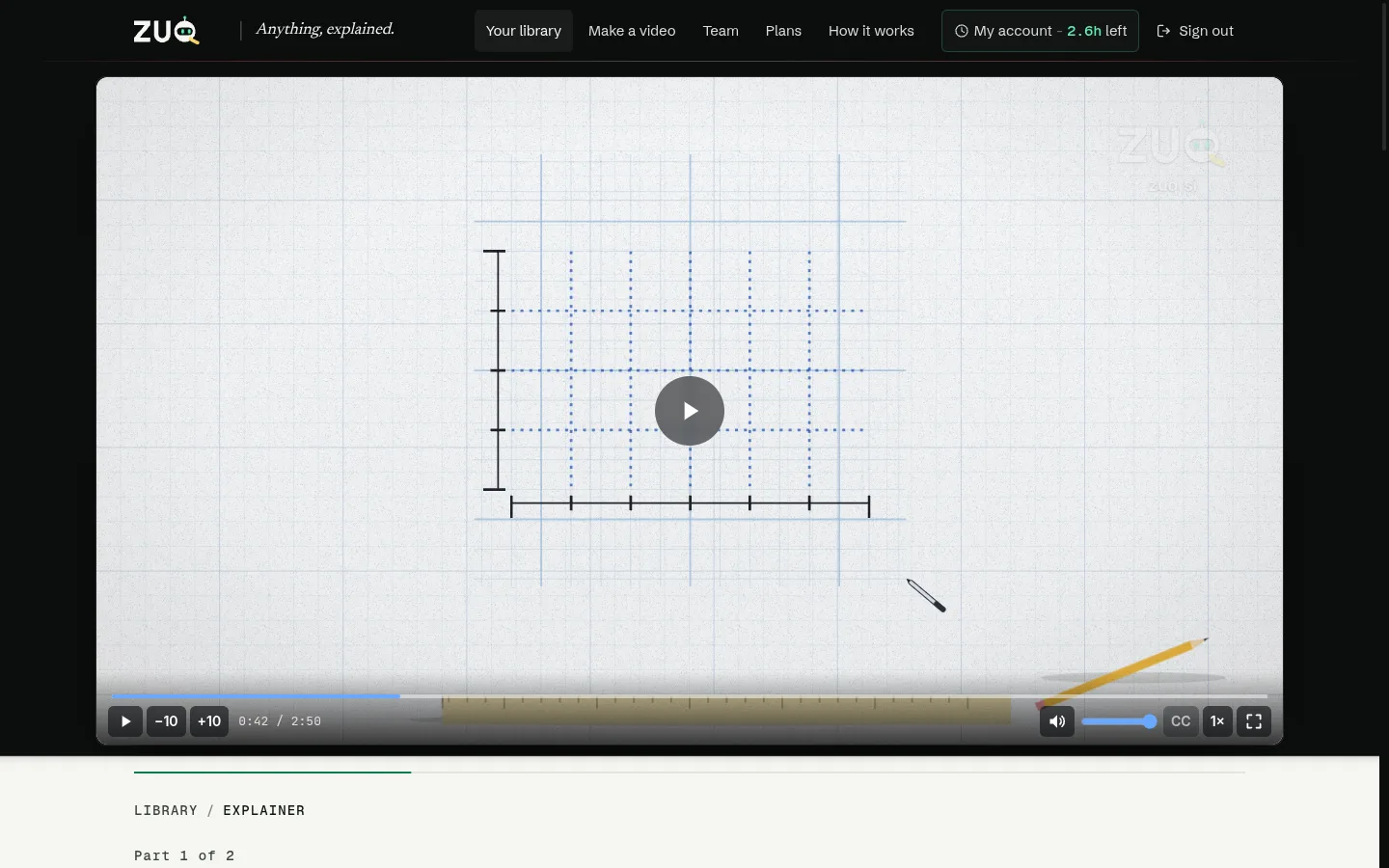
Every finished video has its own page in your library. The player runs full width on a dark stage at the top; below it, on a light page, are the title, the key facts, the lessons or parts, a scene-by-scene timeline and the Tools panel.
Updated
Open it from Your library by choosing a video. A course opens on the lesson you were watching, so you can pick up where you left off.
Play the video
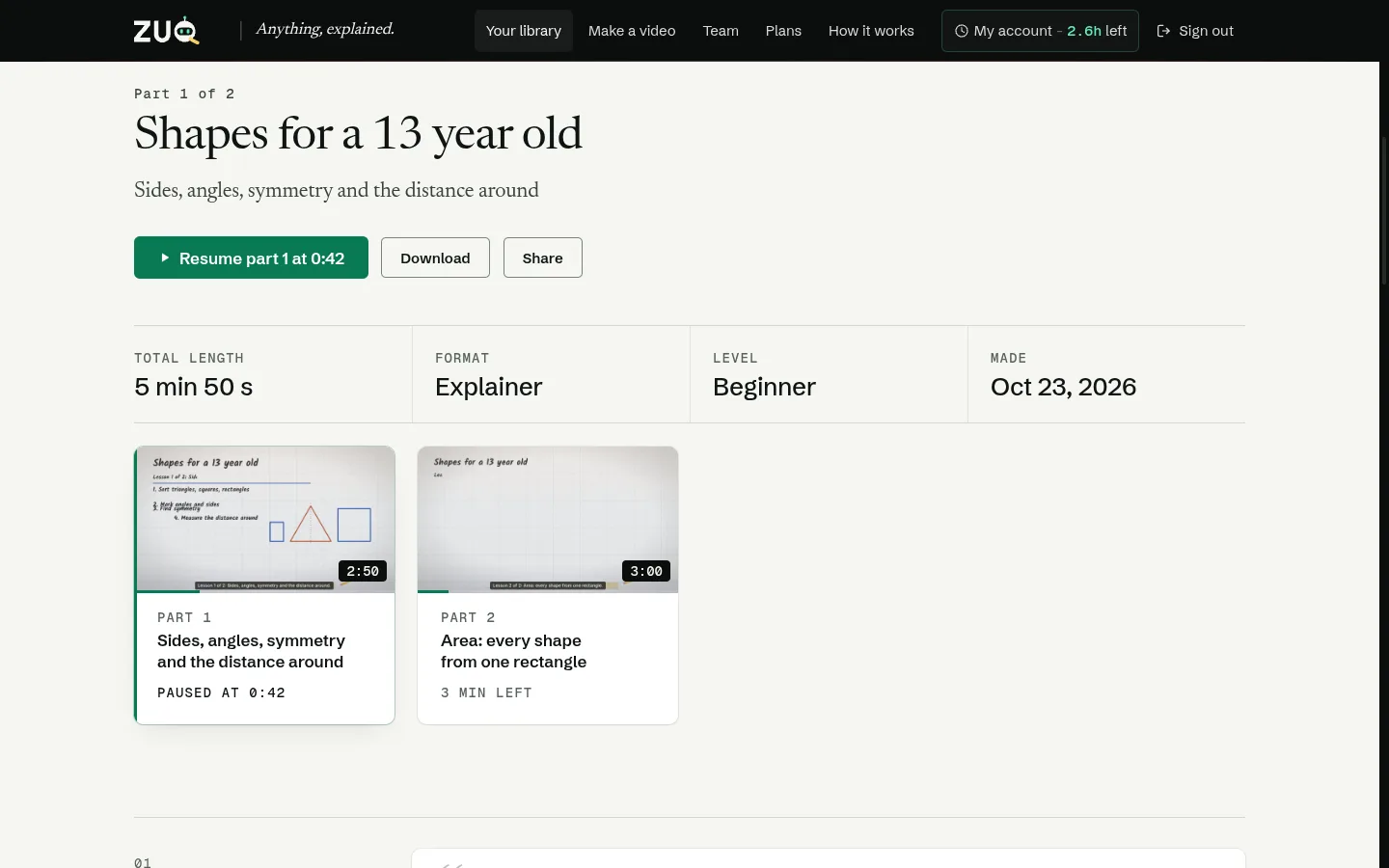
The player sits on a dark band, edge to edge under the header. Under it, the title block shows the video's title, its goal in one line, and the main action: Play lesson 1, Resume, or Watch again once you have finished.
The key-facts strip under the title shows the total length; the number of lessons for a course, the source document for a document video, or the format for an explainer; and when the video was made.
Move between lessons and parts
A course lists its lessons in the Lessons rail; a longer explainer or document video lists its parts the same way. Each card shows a poster, the number, the title and the length, and says its state in words: Now playing, Paused at a time, Watched with a tick, or how many minutes are left.
- Choose a card in the Lessons rail to play that lesson.
- Use Previous lesson and Next lesson to step through the course.
- Turn on Autoplay next lesson to start the next lesson when one ends.
Resume where you left off
Your place in each lesson is saved in this browser as you watch. When you come back, the page offers Resume at the point you stopped, and lessons you have watched to the end carry a tick.
Progress is kept in the browser, not your account, so another device or a private window starts fresh.
Jump to a scene with In this lesson
The "In this lesson" section (In this video for a single video) lists the narration scene by scene, each with its start time. The current scene is marked Now and follows the player.
- Choose any line to jump the player to that scene.
- Type in the search field to show only the sentences that match.
- Choose Show all to unfold every scene.
Use the Tools panel
Everything you can do with a finished video is in Tools, in five sections:
- Download: save the video as an MP4 at 720p, 1080p or 4K, in desktop Chrome, Edge, Brave or Opera. Other browsers play it on this page.
- Captions and text: captions as .srt or .vtt, and the transcript as .txt.
- Share: who can watch, the watch link and invitations.
- Edit: Open in Film Editor to change scenes, or Make it again to start a new build from the same brief.
- Danger zone: delete the video, after you confirm.
Questions
Why does my course not remember where I stopped on my phone?
Progress is saved in each browser separately. The phone has its own record, so it starts from the beginning until you watch there.
Can I watch while the video is still being made?
Often, yes. A video can start streaming before the later parts are finished; the page says when later parts are still arriving.
How do I delete a video?
Open Tools on its video page, go to Danger zone, choose Delete this video and confirm. Deleting a build that is still running cancels it and releases its minutes.