Docs - Watching and sharing
Change a video in the Film Editor
In short
The Film Editor changes a finished video without starting over. Describe the change in your own words to the AI Director; it proposes the changes scene by scene, with the minutes they use, and nothing is made until you apply them. Applying makes a new version and keeps the one you started from.
Updated
Only the scenes the change re-makes are charged, rounded up to the next half minute and never less than 30 seconds. A whole-video change of colours, look, voice or narration language re-makes every scene, so it costs the video's full runtime. The cost is shown before you apply.
Open the Film Editor
The editor has a toolbar on top, the Inspector on the left, the stage in the centre, the AI Director on the right and the timeline under the stage. Below 1280 pixels wide the stage sits on top and the panels become tabs: Edit, Director and Timeline.
- Open the video from Your library.
- In Tools, under Edit, choose Open in Film Editor.
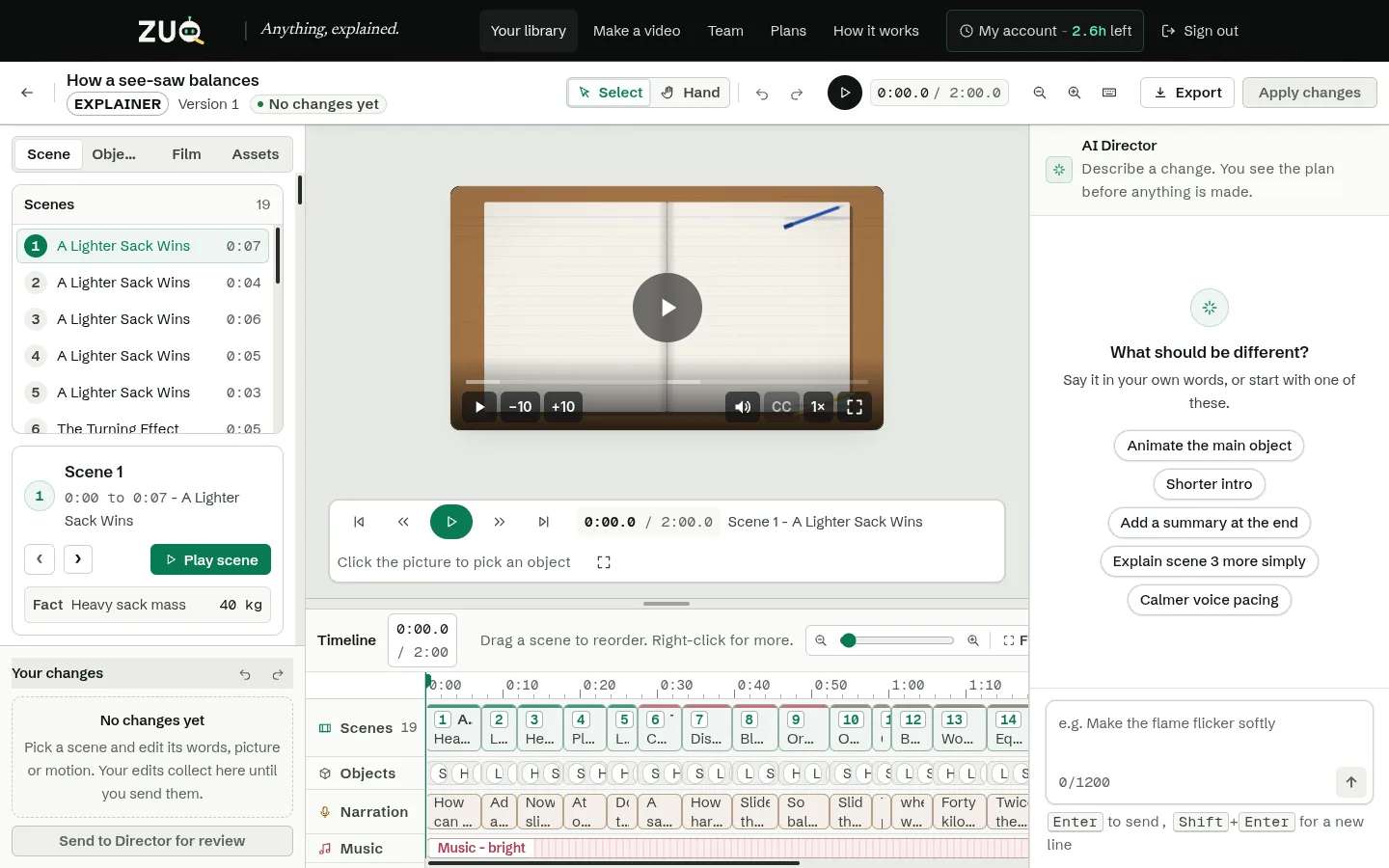
Ask the AI Director for a change
- Select a scene on the timeline, or an object on the stage, if the change is about that part.
- Type the change into the Director, for example "Shorter intro", "Explain scene 3 more simply" or "Add a summary at the end".
- Read the proposal: the changes are listed per scene, with the minutes they use. Answer any follow-up question the Director asks.
- Choose Apply to make the new version, or Adjust to say what to change first.
- In the toolbar, check the list and the cost under Apply changes, then confirm.
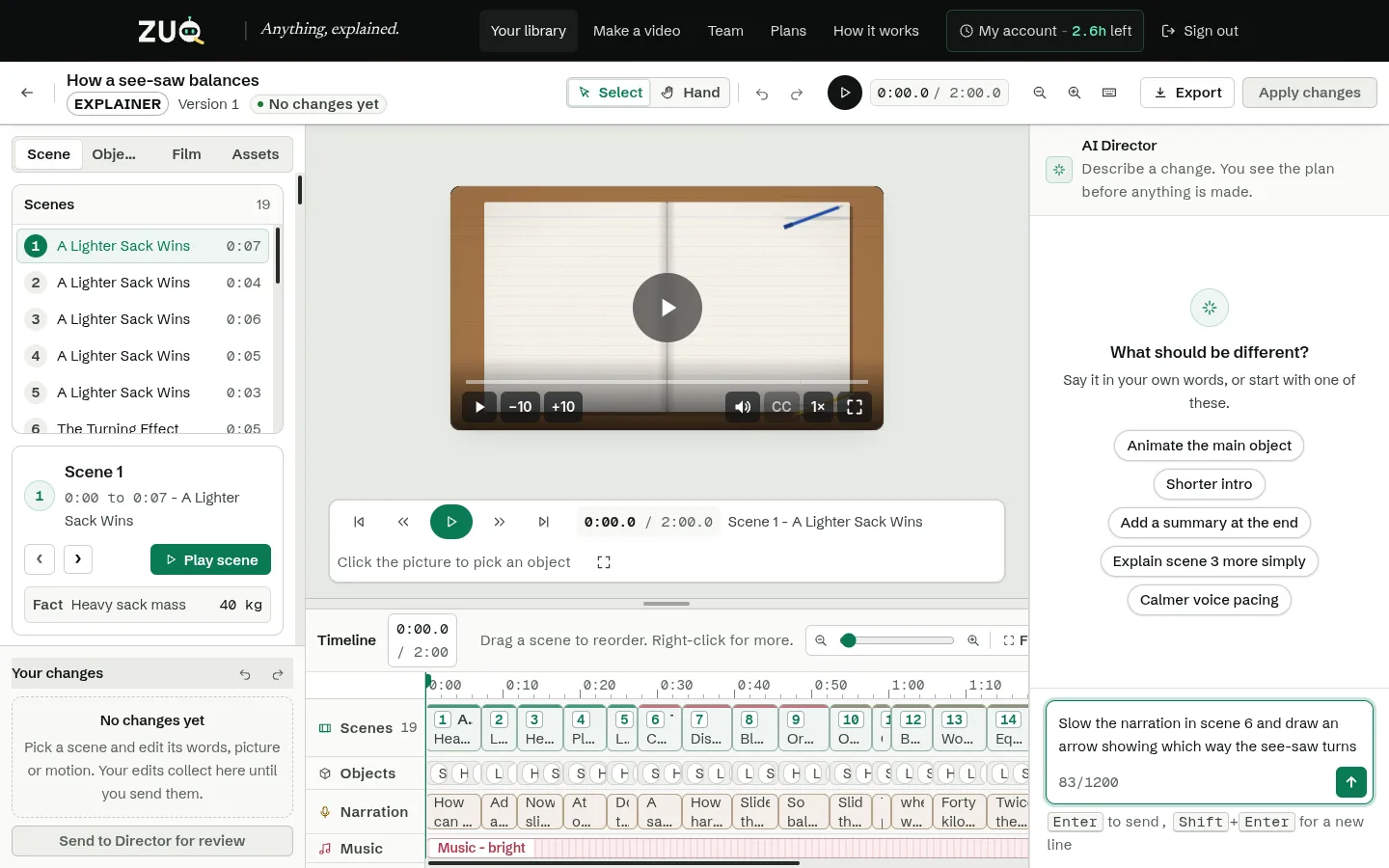
Edit directly
You can also change the film yourself. Direct edits are staged with Undo and Redo and applied together, like the Director's proposals.
- Narration: edit sentences in a scene.
- Objects on the stage: their look, colour, size and place.
- Scenes: add, move or remove one.
- The whole film, in the Film tab: brand kit colours, pacing, narration style, voice delivery and narration language.
- Assets: upload your own pictures to use in the film.
Change the narration language
In the Film tab, Narration language offers 132 languages. Applying it translates and re-voices every scene as a new version, so it costs the video's full runtime.
Versions and Compare
Each applied change makes a new version, linked to the one before; the original stays in your library. Use the Version control in the toolbar to compare a version with the one before it side by side, with shared playback and the changed scenes marked.
Keyboard shortcuts
Press ? to see every shortcut.
- Space: play or pause.
- Left and Right arrows: move 1 second; with Shift, 5 seconds.
- Up and Down arrows: previous or next scene.
- V: select tool. H: hand tool.
- Ctrl+Z (Cmd+Z on a Mac): undo. Ctrl+Shift+Z or Ctrl+Y: redo.
- /: ask the Director. Esc: clear the selection.
Questions
How much does a change cost?
Only the scenes the change re-makes are charged, rounded up to the next half minute and never less than 30 seconds. A whole-video change of colours, look, voice or narration language re-makes every scene, so it costs the video's full runtime. The proposal and the Apply button show the exact minutes before anything is made, and you need that many left this month.
Does editing replace my original video?
No. Applying makes a new version. The version you started from stays in your library.
Why can I only look at my video, not change it?
Videos made before the editor kept scene plans open view-only. Use Make it again from the video page to make a new build you can edit.
Can I export from the editor?
Yes. The Export menu saves the open version as an MP4 at 720p, 1080p or 4K, its captions as .srt or .vtt, the transcript as .txt, and YouTube chapter lines.